

How to Convert AI, EPS, SVG & CDR to High-Res 300 DPI, CMYK & Vector PDF Online
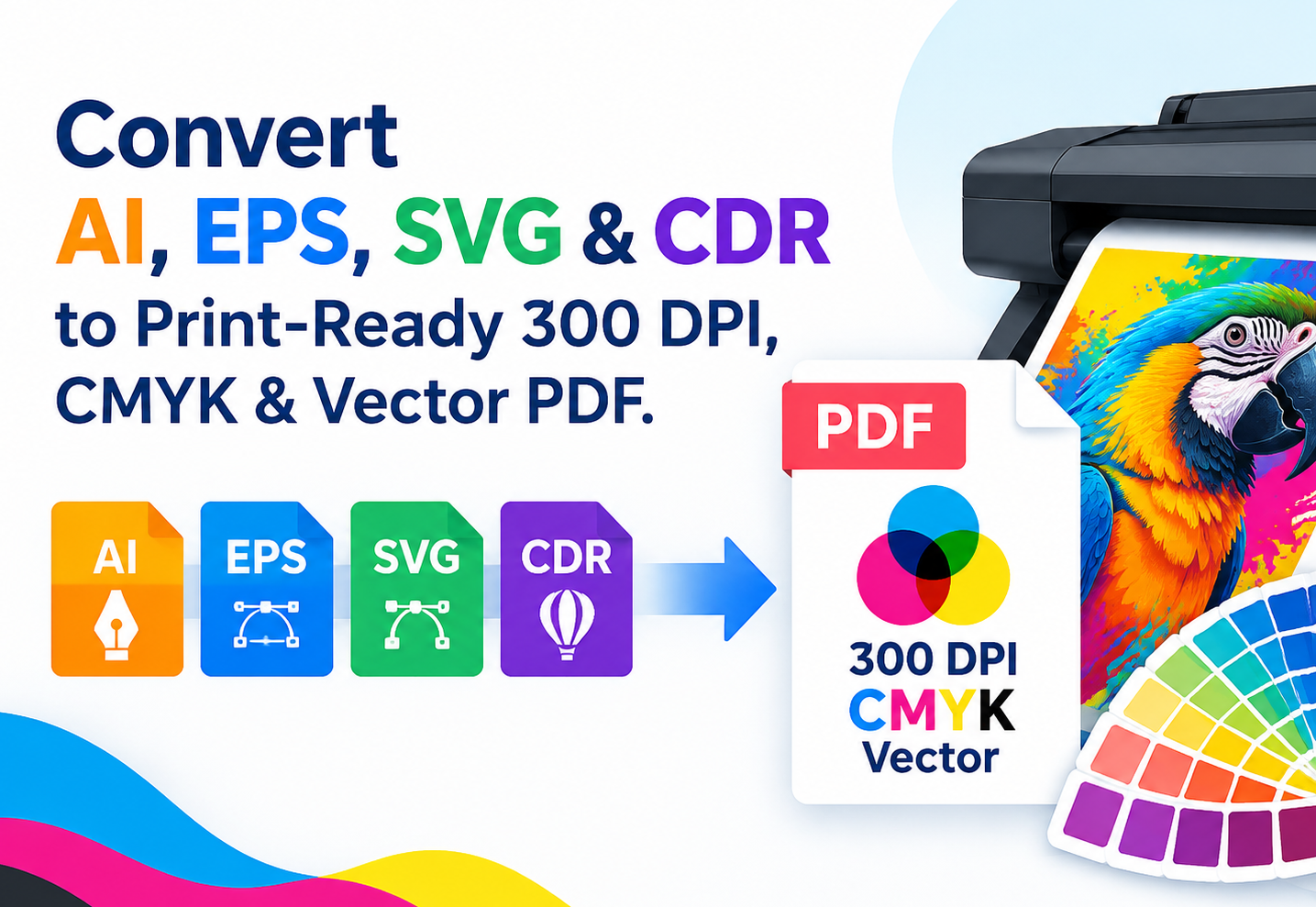
Ultimate Guide: Convert AI, EPS, SVG & CDR to Print-Ready 300 DPI, CMYK & Vector PDF
Vector files like EPS, AI, SVG, and CorelDRAW (CDR) are essential for design, but sharing or printing them often requires standard formats like PNG, JPG, PDF, or TIFF.
However, standard online converters often ruin image quality, lowering the resolution to 72 DPI or losing the scalable vector paths when exporting to PDF.
If you are looking for a professional tool to convert vector files for high-resolution printing, custom sizing, and accurate color matching, here is everything you need to know.
The Common Problems with Standard Vector Converters
1. Low Resolution (Pixelation): Converting an EPS or AI file to a standard PNG often results in a blurry 72 DPI image.
2. Color Shifts (RGB vs. CMYK): Standard converters force RGB color profiles, which causes color mismatch when sent to a physical printer.
3. Loss of Vector Quality in PDF: Many converters rasterize vector files into low-quality images inside a PDF, losing sharpness completely.
What Makes Our Vector Converter Unique?
Our advanced vector conversion tool is built specifically for designers, print shops, and marketers who demand zero-loss quality and professional print compatibility.
1. True 300 DPI High-Resolution Output
Whether you need PNG, JPG, or TIFF, you can directly choose 300 DPI (Dots Per Inch) output. This guarantees crisp, sharp details suitable for high-end printing, packaging, and large-format banners.
2. Full CMYK Color Space Support
Avoid drastic color changes after printing. Our converter supports converting EPS, AI, SVG, and CDR directly to CMYK color mode (JPG/TIFF/PDF), ensuring your printed materials look exactly as intended.
3. Custom Output Dimensions (Lossless Scaling)
Vector files can scale infinitely. Our tool allows you to set custom output width and height before converting to raster formats (PNG/JPG/TIFF). No matter how big you scale it, the output remains 100% crisp with zero blur.
4. True Vector-to-Vector PDF Export
When converting EPS, AI, SVG, or CDR to PDF, our engine preserves the original vector paths and anchors. The generated PDF remains a scalable vector PDF, perfect for CAD, laser cutting, and commercial offset printing.
How to Convert Vector Files to 300 DPI / CMYK Step-by-Step
Converting your vector files for professional print or web use takes only a few seconds:
1. Upload File: Select your .ai, .eps, .svg, or .cdr file.
2. Choose Output Format: Select PNG, JPG, TIFF, or PDF.
3. Customize Settings:
● Set resolution to 300 DPI for print.
● Enter your preferred custom width and height.
● Toggle CMYK color profile if printing.
4. Convert & Download: Click convert and get your high-precision output immediately.
Frequently Asked Questions (FAQ)
Can I convert CorelDRAW (.cdr) files to 300 DPI PNG without CorelDRAW installed?
Yes! Our online tool processes .cdr files directly in the cloud and allows you to export high-res 300 DPI PNG or JPG images without installing any software.
Will converting EPS to PDF turn my graphics into pixels?
No. Our converter maintains the original vector path data when exporting to PDF, keeping your lines sharp at any zoom level.
Try the Professional Vector Converter Today
Stop struggling with blurry PNGs and incorrect print colors. Convert your AI, EPS, SVG, and CDR files to 300 DPI, CMYK, and vector PDF with custom dimensions now!
 Continue with Google